
XBXPlay: Remote Play
Streaming DevTools
4.7272.00 Reviews
- Version
- 1.8.3
- Installs
- 10.00K
- Age Rating
- Everyone
Screenshots
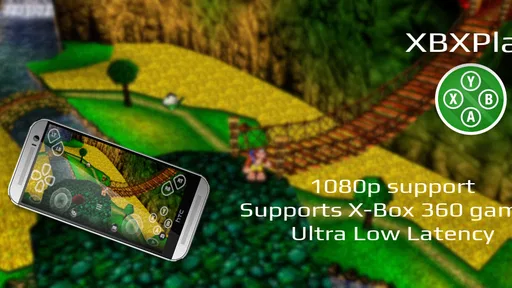
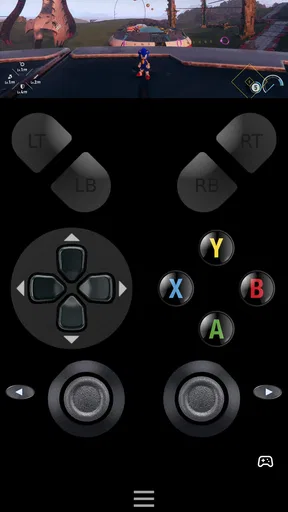
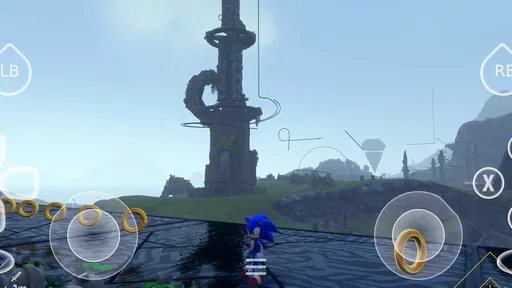
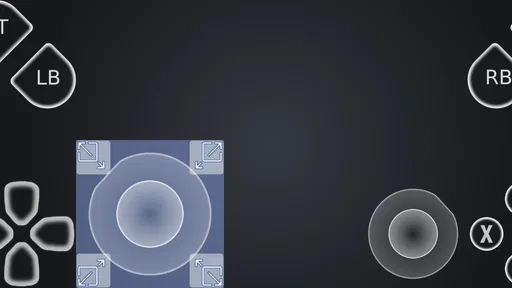
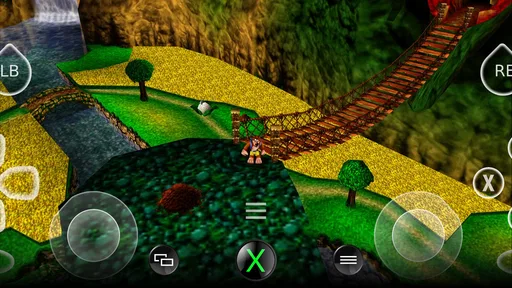
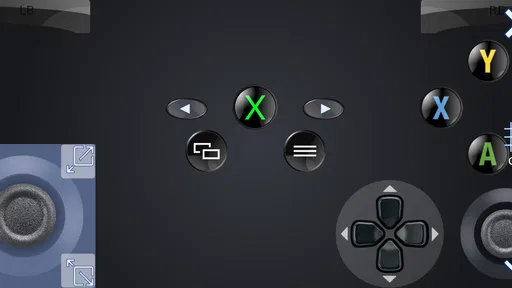
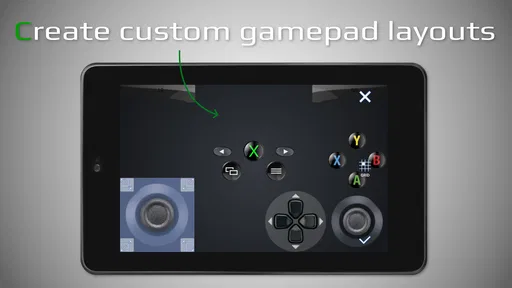
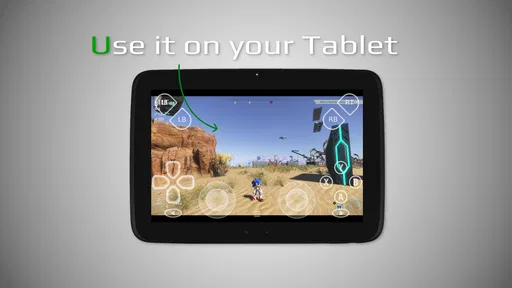
Our Review of XBXPlay: Remote Play
 Analysis by Appyee
I judge a remote-play app less by its boldest promise than by how well it fits into an ordinary day: can I pick up a game away from the television, understand what the phone is doing, and avoid turning a quick session into a troubleshooting project? XBXPlay: Remote Play is a paid Xbox-streaming tool from Streaming Dev, and its appeal is focused: it brings a console session to a mobile screen rather than replacing the console or offering a separate cloud-game library. That distinction matters when deciding whether it suits your habits.
Trust starts with knowing what the app is for
Remote play has a different trust context from a game downloaded and run entirely on a phone. The console remains part of the experience, and signing in with an Xbox account is part of getting connected. I would treat that sign-in as a meaningful account step, not a casual detail: use the account you intend to play with, pay attention to the sign-in prompts, and make sure you are comfortable authorizing a third-party client to connect to your console before proceeding.
The app is in the Tools category, but its purpose is plainly gaming utility. It is rated for Everyone, has a 4.7 average from around 2.3K ratings, and has passed 10K installs. Those figures suggest that it has found an audience, but popularity is not a substitute for checking whether a paid remote-play app fits your own setup. It costs $6.99, so I would decide based on how often I expect to use it and whether my network and controller arrangements make remote sessions practical.
What to check before you sign in
The setup described for the app involves signing in with an Xbox account and connecting to a console that is switched on, online, and configured to allow remote play. Those are important conditions, not incidental setup chores. Before starting, I would check the console’s remote-play setting and confirm that I can access the account I want to use. If a connection fails, it is sensible to work through those basics before repeatedly signing in or changing unrelated phone settings.
I also recommend thinking through where you will play. A familiar home Wi-Fi connection is a useful first test because it makes it easier to separate a setup issue from weak mobile coverage. Once the connection works at home, trying mobile data gives you a more realistic sense of whether remote sessions fit your commute or other regular outings. I would avoid assuming that a successful home test guarantees a good experience on every network.
Account use and data-sensitive moments
Signing in is the moment to slow down and read what is on screen. I would not enter account details into a prompt that looks unexpected, and I would stop if I could not tell which account or console I was connecting to. That is a practical habit for any app that bridges a personal account and a device at home; it does not require guessing at what information the app collects.
There is also a simple privacy trade-off in remote play: the session happens on a phone or tablet, which may be used in shared spaces. Notifications, conversations, or other people nearby can make a game session less private even when the console is at home. If that matters to you, choose a quieter place, use headphones if appropriate, and keep the screen visible only to people you intend to share it with. These are small choices, but they help make mobile play feel deliberate rather than exposed.
Where user agency matters
The clearest choice is whether to use this app at all. You can stick with playing directly on the console, use another remote-play option that you already trust, or pay for this client if its controller support and mobile access match your needs. The app’s current version is 1.8.3, and it supports Android 5.0 or later; that gives older Android devices a possible route, though actual comfort and performance still depend on the device and connection.
I would also keep control of the session itself. If you are finished playing away from home, end the session rather than leaving it open by habit, and make sure the console is in the state you want before you leave it unattended. Those are sensible remote-play routines, especially if other people share the console or the account. They are more useful than treating “remote” as meaning that no attention to the home setup is needed.
Getting Started with XBXPlay: Remote Play
Setting up XBXPlay: Remote Play is surprisingly straightforward. Once you download the app on your Android or iOS device, it prompts you to sign in with your Xbox account. Don't worry if you’re not super tech-savvy; the app guides you through each step with detailed instructions, making the setup process a breeze.
The app connects to your Xbox console over the internet, so make sure your console is on, connected to Wi-Fi, and set to allow remote play. A stable connection is crucial here; otherwise, you might experience some lag, which, let's face it, can be a total buzzkill when you’re in the middle of an intense game.
Game Library and Interface
Once you're all set, the app opens up your entire Xbox game library, right there on your handheld device. The interface is slick and intuitive; navigating through your games feels just as seamless as it does on the console. The app’s design is minimalist, focusing on functionality, which I totally appreciate. It's like having a pocket-sized version of your Xbox dashboard.
As for the game selection, you get access to everything you own on your Xbox. Whether you're into action-packed shooters or laid-back simulators, your library is right there, ready to play. The app even supports multiplayer, so you can jump into a game with friends just like you would at home.
Performance and Gameplay Experience
This is where XBXPlay: Remote Play really shines. The gameplay experience is surprisingly smooth, provided you have a good internet connection. I tested it over both Wi-Fi and mobile data, and while Wi-Fi clearly takes the cake for seamless performance, mobile data didn't fare too badly either.
The graphics are crisp, and the controls are responsive. The app supports a wide range of controllers, so if you're like me and prefer the feel of a physical controller, you're in luck. I paired my trusty Xbox controller via Bluetooth, and it worked like a charm.
Making a remote session work in real life
A useful way to judge the app is to imagine a specific routine rather than an ideal, uninterrupted gaming day. Say I have half an hour free while someone else is using the television. I can use the phone to continue a game already available on my Xbox, provided the console is ready and the network connection holds up. That is a better fit for a short side quest, a menu-heavy task, or a relaxed game than for a match where a brief delay would ruin the moment.
For a trip, I would prepare at home: confirm remote play is enabled, test the controller, and launch a session before relying on it away from the house. This is not because mobile play is impossible, but because it lets me catch account, console, or controller snags when I can fix them easily. If the session is important, I would also have a fallback plan instead of assuming a hotel or public network will behave like my home Wi-Fi.
One non-obvious trade-off is that a controller can make the phone feel like a portable screen for the console, but it also makes the setup less spontaneous. A controller needs to be available, paired, and comfortable to carry. Touch controls may be convenient where a game supports them, but I would not count on a touchscreen being equally suitable for every title. If you want a genuinely pocketable, one-handed gaming option, a native mobile game is often the simpler choice.
Choosing between remote play and the alternatives
Compared with playing on the television, remote play offers flexibility but gives up the larger screen and the direct feel of local play. For competitive games, fast action, or anything where precise timing is central, I would choose the console display whenever possible. A small delay or compressed image can matter more there than it does in a slower game, and no controller option can remove network dependence.
Compared with cloud gaming, the key distinction is that this app is designed to connect to your own Xbox console and its library, rather than serving as a replacement game catalogue. That makes it appealing if you already own the games and want to use the console from another room or location. If you do not have an Xbox set up for remote access, or you mainly want games that can be started without maintaining a home console connection, a cloud service or mobile-native game may suit you better.
There is also the usual alternative of using the console maker’s own remote-play route, if it is available and meets your needs. I would compare the actual setup, controller behavior, and connection quality on my own devices before paying for a third-party tool. A feature that sounds better in theory is not much help if it adds friction to the exact routine I care about; conversely, someone who already prefers this client’s approach may find the purchase worthwhile.
Performance, controls, and the compromises to expect
The quality of a streamed session depends on more than the phone. The console must remain reachable, and the network path between console and device can change as you move. If image quality drops or input feels delayed, I would first compare the same game on a steady Wi-Fi connection, then try another location or network. That simple test helps identify whether the issue follows the connection rather than the game or controller.
Controller setup deserves a little advance thought. Pairing a Bluetooth controller at home and checking that its buttons behave as expected is less frustrating than discovering a pairing problem once you are away. For games with small interface text, I would also test a representative screen before planning a long session: a crisp stream does not make every interface readable on a phone. A tablet can be a more comfortable viewing device if you already have one, although carrying it changes the portability equation.
Mobile data can make remote play possible outside the home, but it is not automatically the best choice for a long session. Coverage can vary from one place to another, and streaming uses a continuous connection, so I would keep an eye on my plan and battery rather than treating the phone as an unlimited replacement for the console. A charger or power bank may be useful for extended play, while a short session at home is much less demanding as a commitment.
Who will get the most from it
I think this app makes the most sense for Xbox owners who already have a reliable console setup, want to play in another room, or can name a regular place where a phone-based session would genuinely help. It is especially appealing if you like having your own controller and are willing to do a little preparation before leaving home. The combination of a personal library and mobile access is more valuable when it solves a repeat problem, such as sharing the living-room screen, rather than serving as a novelty tried once.
I would skip it if you rarely play away from the television, dislike streaming games, have inconsistent access to the console, or expect every title to feel as responsive as it does locally. It is also not the best answer for someone seeking a standalone mobile library, a no-controller experience, or a way to play without a compatible home setup. The $6.99 price is easier to justify when remote access will be part of your routine; if you are only curious, compare the available options and your own likely use before spending.
A cautious verdict on value and control
At version 1.8.3, XBXPlay: Remote Play is a focused option for taking an existing Xbox session to a mobile device. Streaming Dev is the developer, and the app’s 4.7 average and 272 reviews offer useful context, but I would give more weight to a practical trial of the setup on my own network. Its Everyone content rating may be reassuring for households, though adults should still make their own account and device choices.
The most useful questions to answer before committing are straightforward: is the console configured and reachable, does the controller you want to use pair reliably, and is the screen comfortable for the games you actually play? If those answers are yes, remote access can turn otherwise idle moments into convenient gaming time. If one of them is no, a direct console session, another remote-play route, or a native phone game may be a better fit.
Limitations and Considerations
Now, no app is perfect, and XBXPlay: Remote Play does have its quirks. First off, the need for a robust internet connection means that playing during a long bus ride might not be ideal unless you have solid mobile data coverage. Also, not every game translates perfectly to a smaller screen. Some text-heavy games might require a bit of squinting, but hey, that’s a small price to pay for gaming on the go.
Another thing to keep in mind is battery life. Streaming games can be pretty demanding on your device’s battery, so make sure you’ve got a charger handy if you’re planning a lengthy session.
Final Thoughts
All in all, XBXPlay: Remote Play is a fantastic app for Xbox enthusiasts who want the freedom to play their games anywhere. It's easy to set up, offers impressive performance, and opens up your entire game library. While it does have some limitations, the ability to play your favorite Xbox games on the go is a compelling reason to give it a try.
If you’re someone who craves flexibility and enjoys gaming in unconventional places, this app might just be the perfect addition to your mobile arsenal. So go ahead, give it a whirl, and transform the way you play Xbox forever.
Verdict
Strengths of XBXPlay: Remote Play
- Easy setup with intuitive interface.
- Smooth performance with low latency.
- Supports multiple Xbox consoles.
- Customizable control layouts.
- Compatible with various devices.
Limitations of XBXPlay: Remote Play
- Requires stable high-speed internet.
- Limited offline functionality.
- Some features need Xbox Live Gold.
- Occasional connectivity issues.
- Battery drain on mobile devices.
Similar Picks in This Category
View All
Google LLC4.0

Gboard - the Google Keyboard
Google LLC4.5

Google Play services
Google LLC4.3

Google Play Store
Google LLC4.9

Files by Google
Google LLC4.5

SHAREit: Transfer, Share Files
Smart Media4U Technology Pte.Ltd.4.3
Frequently Asked Questions
What platforms does XBXPlay: Remote Play support?
XBXPlay: Remote Play is compatible with both Android and iOS devices, allowing users to stream their Xbox games to their smartphones or tablets. Ensure your device meets the minimum operating system requirements for optimal performance. This cross-platform compatibility ensures a wide range of users can enjoy gaming on the go.
How do I set up XBXPlay: Remote Play on my device?
To set up XBXPlay: Remote Play, first download the app from the Google Play Store or Apple App Store. Open the app and follow the on-screen instructions to connect it with your Xbox console. Ensure both your console and mobile device are on the same Wi-Fi network for a seamless connection.
Is there a subscription fee for using XBXPlay: Remote Play?
XBXPlay: Remote Play itself does not require a subscription fee to use. However, you must have an Xbox Live account and an active internet connection. Some features may require Xbox Game Pass or additional purchases, depending on the games you wish to stream.
What is the quality of the streaming experience on XBXPlay: Remote Play?
The streaming quality on XBXPlay: Remote Play largely depends on your Wi-Fi connection. For a high-quality experience, a stable and fast internet connection is recommended. The app is designed to deliver smooth gameplay with minimal lag, but network interruptions can affect performance.
Can I use a controller with XBXPlay: Remote Play?
Yes, XBXPlay: Remote Play supports Xbox controllers via Bluetooth. Pair your controller with your mobile device before launching the app for a more immersive gaming experience. Some devices may also support other compatible controllers, enhancing gameplay flexibility.
